
Microsoft Word is a powerful word processor, but not every individual or business needs a paid Microsoft 365 subscription. The best free Microsoft Word alternatives are LibreOffice Writer for a complete offline replacement, ONLYOFFICE for Microsoft file compatibility, Apple Pages for Apple users, Zoho Writer for document automation, and Google Docs for real-time collaboration.
I compared these tools based on the factors that matter when replacing Word: DOCX formatting, offline access, collaboration, platform support, privacy, automation, and the limitations of each free version. LibreOffice Writer earned my highest score because it provides the strongest overall combination of desktop editing, document controls, customization, and unrestricted free access.
For this guide, “free” means that a user can create, edit, save, and export documents without entering a trial or purchasing a Microsoft 365 subscription. Some products charge for additional cloud storage, AI features, business administration, technical support, or higher-volume automation.
Best free Microsoft Word alternatives at a glance
|
||||
|
||||
|
||||
|
||||
|
Why you can trust TechRepublic
At TechRepublic, we evaluate workplace software based on the practical decisions readers face when selecting and implementing technology.
For this guide:
- I considered nine free or freemium word processors.
- I prioritized products capable of replacing Word for everyday document creation.
- I compared free access, file compatibility, offline editing, collaboration, formatting, accessibility, privacy, and platform support.
- I reviewed each product’s upgrade triggers, including storage limits, automation credits, paid AI features, and support restrictions.
- I used a weighted rubric covering 21 individual criteria.
- I considered how well each product fits different work environments rather than treating every free word processor as interchangeable.
LibreOffice Writer: Best overall free Word alternative
My rating: 4.35 out of 5

Why I chose LibreOffice Writer
LibreOffice Writer is my top overall pick because it provides the closest thing to a complete desktop word processor without a subscription. It works entirely offline, supports Microsoft Word and OpenDocument formats, and includes advanced tools for styles, templates, mail merges, indexes, bibliographies, and long-form document layouts.
I also like that LibreOffice is open source and available for Windows, macOS, and Linux. Unlike browser-based alternatives, it lets you create and store documents locally without uploading sensitive business files to a cloud service. The LibreOffice 26.2.5 release also improves performance and compatibility with documents created in other office suites.
At the same time, LibreOffice may feel less polished than Microsoft Word or Google Docs, and complex .docx files can still experience formatting changes. However, its combination of offline access, document controls, privacy, and cross-platform availability makes it the strongest free option for most users.
Pros and cons
| Pros | Cons |
|---|---|
| Completely free and open source | Interface can feel dated |
| Full offline editing on Windows, macOS, and Linux | No built-in real-time collaboration |
| Strong tools for long and complex documents | Complex Word formatting may shift |
| Supports Microsoft Word and OpenDocument formats | Professional support generally requires a third-party provider |
Pricing
LibreOffice Writer and the other applications in the LibreOffice productivity suite are free to download and use. There are no subscription plans or feature-based upgrades. Businesses that need deployment assistance, long-term support, or customized development can purchase services from certified LibreOffice partners.
Key features
- Full offline document editing
- Advanced formatting and layout controls
- Microsoft Word and OpenDocument compatibility
- Custom styles, templates, toolbars, and extensions
- Mail merge and macro support
- Tables of contents, indexes, citations, and bibliographies
- PDF and EPUB exporting
- Windows, macOS, and Linux applications

ONLYOFFICE: Best for Microsoft file compatibility
My rating: 4.3 out of 5


Why I chose ONLYOFFICE
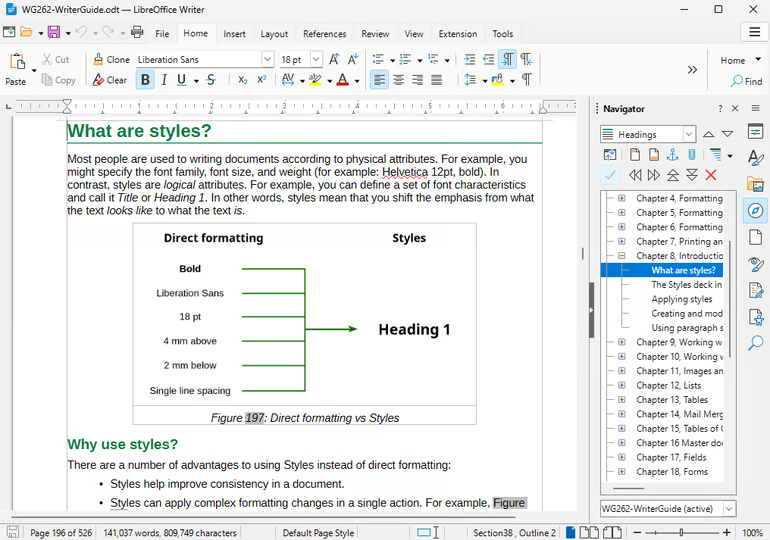
ONLYOFFICE provides some of the strongest Microsoft Office file compatibility among the free Word alternatives I reviewed. Its Document Editor uses .docx as its primary format, which helps preserve layouts, styles, tables, and other formatting when files move between ONLYOFFICE and Microsoft Word.
The free ONLYOFFICE Desktop Editors suite works offline on Windows, macOS, and Linux. Its tabbed interface also feels familiar to Microsoft Office users, making it easier to navigate than some open-source alternatives. In addition to text documents, the desktop suite includes editors for spreadsheets, presentations, forms, and PDFs.
ONLYOFFICE supports real-time co-editing, comments, version history, and review tools when connected to ONLYOFFICE DocSpace or a compatible third-party cloud platform. However, users who only install the desktop application will not receive the same built-in cloud collaboration experience offered by Google Docs, which I recommend for teams that need real-time collaboration.
Pros and cons
| Pros | Cons |
|---|---|
| Strong compatibility with Microsoft Office formats | Collaboration requires a cloud connection |
| Free desktop applications for Windows, macOS, and Linux | Fewer customization options than LibreOffice |
| Familiar tabbed interface | Some cloud and business features require a paid plan |
| Includes document, spreadsheet, presentation, form, and PDF editors | Free community editions lack guaranteed technical support |
ONLYOFFICE Desktop Editors is free and open source for Windows, macOS, and Linux. Free mobile applications are also available for Android and iOS.
For cloud collaboration, ONLYOFFICE DocSpace offers three plans:
- Startup: Free for up to three administrators, unlimited users and guests, 12 rooms, and 2GB of storage
- Business: $20 per administrator per month under the current promotional rate; the regular price is $30 per administrator per month
- Enterprise: Custom pricing for a self-hosted deployment with enterprise support and service-level agreements
The Business plan adds unlimited rooms, 250GB of storage per administrator, branding, single sign-on, activity tracking, backups, third-party integrations, and professional support.
Key features
- High-fidelity Microsoft Office formatting
- Tabbed document editing
- Built-in PDF editing and conversion
- Full offline document editing
- Real-time co-editing through connected cloud services
- Comments, tracked changes, and version history
- Plugins, macros, and fillable forms
- Windows, macOS, Linux, iOS, and Android applications

Apple Pages: Best for Apple users
My rating: 4.07 out of 5


Why I chose Apple Pages
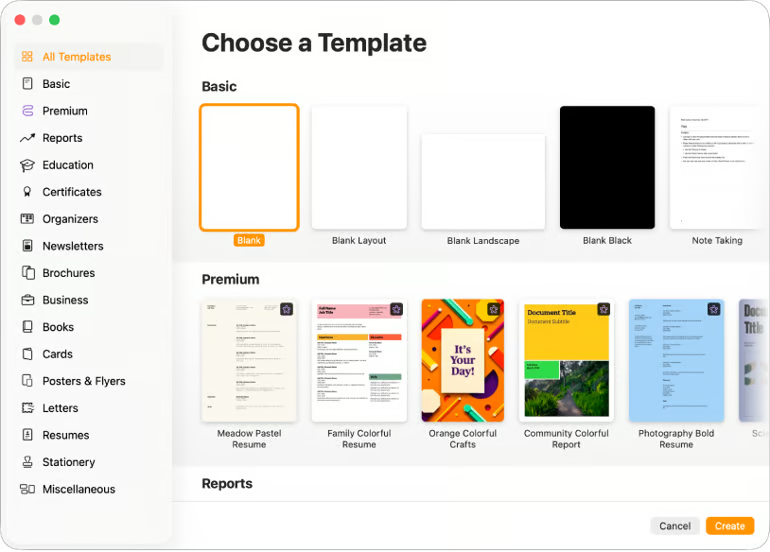
Apple Pages offers seamless integration with macOS, iPhone, iPad, and iCloud. In my experience, its polished templates and intuitive drag-and-drop tools make it one of the easiest options for creating visually appealing reports, resumes, letters, and other business documents.
I particularly like how Pages lets me begin working offline on a Mac or iPad and sync the document through iCloud when I reconnect. It also supports real-time collaboration, comments, tracked changes, and participant permissions. Windows users can edit documents through iCloud.com, although I found the web version more limited than the native Apple applications.
Although Pages can open and export Microsoft Word .docx files, I would not rely on it for exchanging documents with complicated layouts, custom fonts, or advanced tables. For those workflows, I recommend ONLYOFFICE or LibreOffice because they generally provide more consistent compatibility with Word files.
Pros and cons
| Pros | Cons |
|---|---|
| Free on Apple devices | No native Windows or Android application |
| Polished templates and page-layout tools | Complex Word documents may lose formatting |
| Syncs across Mac, iPhone, and iPad through iCloud | Web version has fewer features |
| Supports real-time collaboration | Best experience is limited to the Apple ecosystem |
Pricing
Apple Pages is free on supported Mac, iPhone, and iPad devices. Pages for iCloud is also available through a web browser with an Apple Account.
Apple includes 5GB of free iCloud storage, which is shared among documents, photos, device backups, and other iCloud data. If you need additional storage, you can upgrade to an iCloud+ plan, starting at $0.99 per month for 50GB.
Key features
- Pre-built business templates
- Drag-and-drop document design
- Automatic syncing through iCloud
- Offline editing on Apple devices
- Real-time collaboration and commenting
- Track changes and version history
- Microsoft Word importing and exporting
- PDF and EPUB exporting

Zoho Writer: Best for document automation
My rating: 4.05 out of 5


Why I chose Zoho Writer
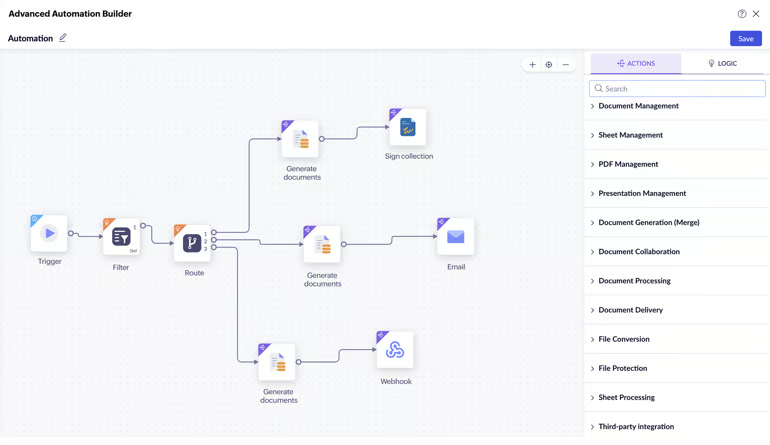
What stands out to me about Zoho Writer is how easily it turns a document into part of a larger business workflow. I can create reusable templates, merge data from services such as Zoho CRM, and route finished documents for approval, storage, email delivery, or electronic signature. Its no-code workflow builder makes these capabilities more accessible to users who do not want to create automations through scripts or APIs.
For everyday writing, I found the interface clean and less distracting than a traditional desktop word processor. Zoho Writer includes real-time co-authoring, comments, tracked changes, version history, advanced layouts, and the Zia writing assistant. It also integrates closely with Zoho applications such as CRM, Books, Projects, and Sign, making it particularly valuable for businesses already using the Zoho ecosystem.
Additionally, Zoho now offers a desktop application for Windows, macOS, and Linux, which lets me edit local .docx, .odt, .txt, and Markdown files without creating an account. However, its most compelling automation, integration, and electronic-signature capabilities often require a paid Zoho subscription, API credits, or another Zoho product.
Pros and cons
| Pros | Cons |
|---|---|
| Strong document-generation and workflow tools | Advanced automation may require additional services or credits |
| Clean, distraction-free interface | Microsoft Word formatting may change during conversion |
| Real-time collaboration and review features | Best suited to organizations using other Zoho products |
| Free desktop application with offline editing | Fewer advanced desktop publishing controls than LibreOffice |
Pricing
Zoho Writer is free for individual document creation, editing, sharing, and collaboration. Its desktop application is also free to download and does not require an account for editing local files.
Businesses can also access Writer through paid Zoho productivity suites and other Zoho products. Document automation, bulk generation, electronic signatures, API activity, storage, and administrative features may be subject to plan limits or usage-based credits.
Key features
- Workflow automation
- Cloud collaboration tools
- AI-powered writing assistance
- Reusable merge templates and fillable forms
- Real-time co-authoring and comments
- Tracked changes and version history
- Offline desktop editing
- Zoho and third-party integrations

Google Docs: Best for real-time collaboration
My rating: 4.02 out of 5

Why I chose Google Docs
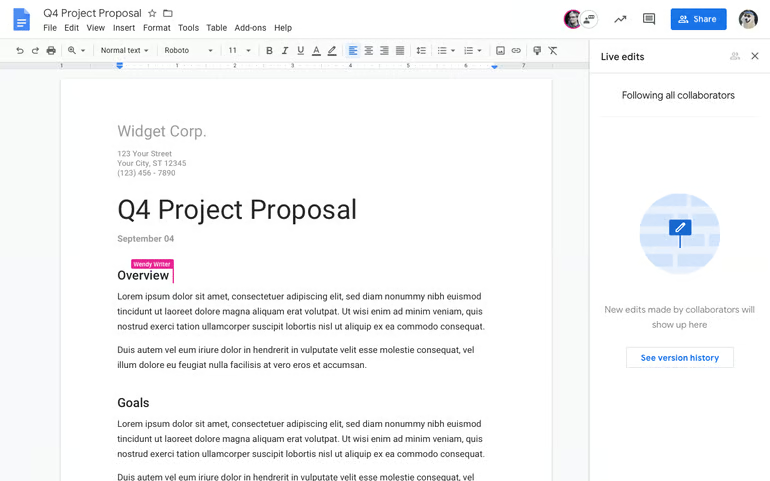
As a Google Workspace user, Google Docs remains my preferred option when several people need to work on the same document. I can watch edits appear in real time, assign comments, suggest revisions, compare earlier versions, and restore previous content without emailing files back and forth. Sharing controls also make it easy to give each participant viewing, commenting, or editing access.
I find Google Docs particularly convenient for teams already working in Gmail, Drive, Meet, and other Google Workspace applications. Documents save automatically to Google Drive and are accessible from virtually any browser or mobile device. Offline editing is also available, but it must be enabled in advance, making Google Docs less dependable than LibreOffice or ONLYOFFICE when an internet connection is unavailable.
But overall, Google Docs can open, edit, and download Microsoft Word files, although advanced layouts and formatting may change during conversion. Google Docs also offers access to AI tools through Gemini, which can draft, rewrite, summarize, and answer questions about documents. However, these AI tools require an eligible Google Workspace or Google AI plan and are not included with every free Google account.
Pros and cons
| Pros | Cons |
|---|---|
| Excellent real-time collaboration | Offline access requires advance setup |
| Automatic saving and detailed version history | Complex Word formatting may change |
| Accessible from most browsers and mobile devices | Documents are primarily stored in Google Drive |
| Integrates with the Google Workspace ecosystem | AI features require an eligible paid plan |
Pricing
Google Docs is free with a personal Google account. This includes the core document editor, sharing, comments, version history, and real-time collaboration.
For businesses, Google Workspace plans add custom email, pooled storage, administrative controls, and other workplace features. With a one-year commitment, plans start at:
- Business Starter: $7 per user per month
- Business Standard: $14 per user per month
- Business Plus: $22 per user per month
- Enterprise: Custom pricing
Note that Gemini availability varies by plan. For example, Gemini in Docs is included with Business Standard but not with every Workspace or personal account.
Key features
- Real-time document collaboration
- Comments and suggestion mode
- Automatic saving and version history
- Microsoft Word importing and exporting
- Offline editing with advanced setup
- Customizable templates
- Third-party add-ons and integrations
- Gemini writing tools on eligible plans

More Microsoft news
Key features to look for in Microsoft Word alternatives
A Microsoft Word alternative should do more than let you type and save a document. It must support the way you create, format, store, and share files without introducing unnecessary conversion problems or paid upgrades.
- File compatibility: Confirm that the software can open, edit, and export Microsoft Word files. Complex documents containing custom fonts, tracked changes, macros, tables, footnotes, or detailed layouts are more likely to experience formatting changes.
- Offline access: Determine whether you can create, edit, and save documents without an internet connection. Some browser-based editors require offline access to be enabled in advance.
- Formatting and document controls: Look for styles, headers, footers, tables, page breaks, references, images, and navigation tools, especially if you create reports, manuals, policies, or other long documents.
- Collaboration and version history: Teams may need simultaneous editing, comments, suggestions, tracked changes, sharing permissions, and the ability to restore an earlier version.
- Platform support: Check whether the editor works on your operating system and preferred devices. A web application may be sufficient for occasional use, while a desktop application is generally better for sustained offline work.
- Templates: Business templates can reduce the time required to create proposals, reports, resumes, letters, and other frequently used documents.
- Storage and privacy: Cloud storage makes files accessible across devices, while local storage gives users more direct control over where documents are kept. Review storage allowances and data-handling requirements before uploading confidential files.
How to choose the best free Microsoft Word alternative
The best free Microsoft Word alternative depends on how you create documents, where you store them, and who needs to edit them. The following video and decision process can help you compare the leading options.

Step 1: Identify your primary workflow
Begin with the job the word processor must perform. Consider whether you primarily need to:
- Collaborate with colleagues in real time
- Work offline or store files locally
- Exchange complex DOCX files with Microsoft Word users
- Create visually polished documents
- Automate document reviews, approvals, or signatures
- Work across a particular operating system or device ecosystem
Prioritizing one or two essential workflows makes it easier to eliminate products that offer many features but do not address your actual needs.
Step 2: Match the product to your working environment
Each product in this guide serves a different type of user:
- Choose LibreOffice Writer for a complete, customizable desktop editor that works offline.
- Choose ONLYOFFICE when Microsoft file compatibility and a familiar desktop interface are the priorities.
- Choose Apple Pages if you primarily work across Macs, iPhones, and iPads.
- Choose Zoho Writer for document generation, approvals, signatures, and other automated workflows.
- Choose Google Docs when several people need to edit and comment on a document simultaneously.
Also consider what your colleagues and clients use. A product may work well internally but create additional work if external collaborators depend on Microsoft Word.
Step 3: Test a representative Word document
Do not judge compatibility using a blank page or a simple letter. Open a file that reflects the documents you actually create, including elements such as:
- Headings and custom styles
- Tables and images
- Headers, footers, and page numbers
- Comments and tracked changes
- Footnotes and references
- Custom fonts
- Section and page breaks
Edit the document, export it back to DOCX, and reopen it in Microsoft Word. Check whether formatting, comments, links, tables, and other important elements still work as intended.
Step 4: Check where the free version ends
Review the free plan separately from paid editions and add-ons. An editor may be free while charging for cloud storage, AI assistance, automation, administrative controls, or professional support.
Estimate the total cost of the workflow you need rather than relying only on the advertised starting price. A free desktop application may be the least expensive option for one person, while a paid productivity suite may offer better value for a growing team that needs centralized security and administration.
Step 5: Review privacy, support, and update policies
Before using a free editor for confidential or regulated documents, determine where files are stored, what information the provider collects, and whether your organization has approved the software.
Also review the product’s update history, support documentation, community resources, and professional support options. These factors affect the software’s security and long-term suitability, even when its core editing features are free.
Methodology: How I evaluated the best Microsoft Word alternatives
I evaluated nine free and freemium word processors before selecting the five products in this guide. To qualify, each product needed to support meaningful document creation, editing, saving, and exporting without requiring a paid Microsoft 365 subscription.
I assessed each product using a weighted rubric containing 21 individual criteria. The scoring categories were:
- Core Word-replacement capabilities (30%): DOCX compatibility, offline editing, collaboration, version history, platform coverage, and business templates
- Advanced workflow features (25%): Long-document controls, automation, macros, accessibility, privacy, integrations, and export options
- Pricing and free-tier value (20%): Free access, usage limits, storage restrictions, pricing transparency, upgrade triggers, and the affordability of paid options
- Expert assessment (15%): Practical workflow performance, ease of switching from Microsoft Word, and third-party user sentiment
- Support and reliability (10%): Free-user support, documentation, community resources, security maintenance, and product-update frequency
I also considered how well each product serves a particular working environment. A browser-based editor may perform best for real-time collaboration, while a desktop application may be better for offline work, local storage, detailed formatting, or long documents.
My final recommendations prioritize products that can function as practical Word replacements rather than basic text editors. LibreOffice Writer earned the highest score for its overall desktop capabilities, while ONLYOFFICE stood out for Microsoft file compatibility. Apple Pages, Zoho Writer, and Google Docs earned places for their respective strengths in the Apple ecosystem, document automation, and real-time collaboration.
Frequently asked questions (FAQs)
Which free Microsoft Word alternative works best offline?
LibreOffice Writer is the best overall free Word alternative for offline work. It is a complete desktop application for Windows, macOS, and Linux and does not require an internet connection or cloud account for its core editing features.
ONLYOFFICE is another strong offline option, particularly for users who regularly work with Microsoft file formats. Its desktop editors can create and edit local documents without a constant internet connection.
Is Microsoft Word available for free online?
Yes. Microsoft offers a free browser-based version of Word with a Microsoft account. Word for the web provides strong DOCX compatibility and collaboration, but it includes fewer formatting and desktop features than the paid version and does not provide complete offline editing.
I did not rank it as an alternative because it is still Microsoft Word, but it is worth considering if maintaining Microsoft file compatibility matters more than switching providers.
Are free Word alternatives safe for confidential documents?
That depends on the product, configuration, and type of information involved. Desktop applications such as LibreOffice and ONLYOFFICE can store documents locally, while cloud-based editors process and store files through the provider’s services.
Before uploading confidential, proprietary, or regulated information, review the provider’s privacy policy, data location, retention practices, account controls, and your organization’s software-use requirements.
What should I look for in a Microsoft Word alternative?
Prioritize DOCX compatibility, offline access, formatting controls, collaboration, platform support, storage, privacy, and free-plan limitations. The best choice depends on whether you value local editing, real-time teamwork, document automation, Apple integration, or compatibility with Microsoft products.